How to Build Your Personal AI Assistant Step by Step with Claude Code, MCP and a Telegram Bot (2026 Tutorial)
By the Kiwop team · Digital agency specialized in Software Development and Applied Artificial Intelligence for global clients in Europe and the US · Published on April 19, 2026 · Last updated: April 19, 2026
TL;DR — Step-by-step tutorial to build your personal AI assistant on Claude Code MCP as the base stack: four channels (IMAP, Gmail, Slack, Telegram), automatic briefings at 08:00 and 19:00, a bidirectional bot, and slash commands. Around 500 lines of Python, zero paid dependencies beyond the Claude Max x20 subscription. Full setup in 60–90 minutes following the steps.
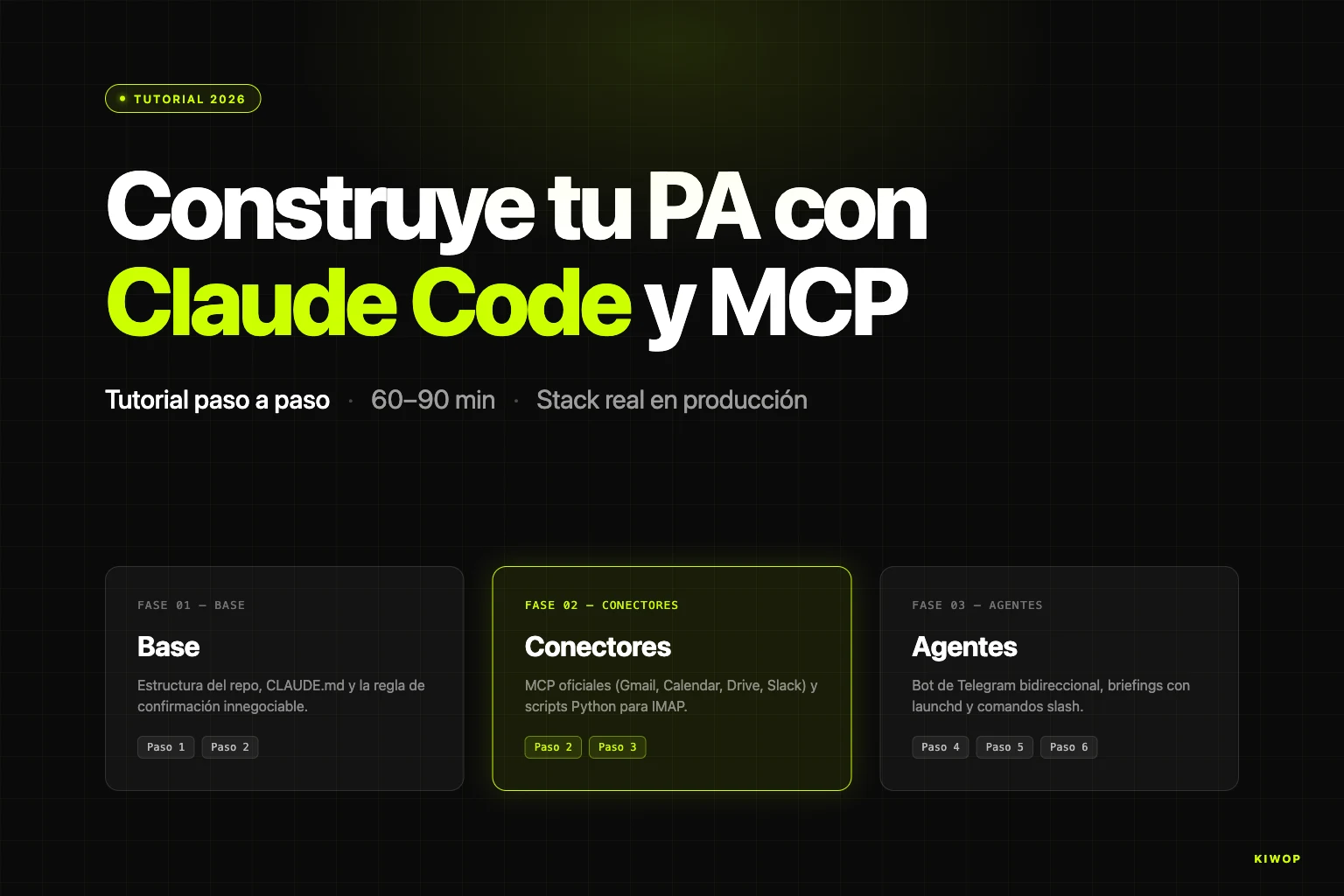
This is the second article in the series about Kiwop's PA. The first, From OpenClaw to a PA with Claude Code and MCP, explains why we built it after Anthropic's policy change on April 4, 2026. This tutorial shows how we built it, with the real code we've had in production for two weeks. When you're done, you'll have a working personal AI assistant on your machine, with the same architecture we use daily at the agency. The reference repository is at https://github.com/purroy/majordomo.
It's not a toy demo. It processes production email, a real calendar, Telegram messages from the phone, and briefings that land at 08:00 and 19:00 without human intervention. The philosophy is deliberately minimalist: each piece does one thing, the glue between pieces is Unix, and secrets never touch disk in plain text.
What you're going to build
By the end of the tutorial, your PA will have four operational channels and a deliberately simple architecture.
The four active channels of the PA are:
- Own IMAP/SMTP email: for your domain's corporate mailbox (
mail.yourcompany.com), read with Python scripts using Python's standard library. Reading, triage, drafting and sending with explicit confirmation. - Google Workspace (Gmail + Calendar + Drive): via the official MCP servers — you can add similar ones like Outlook/Microsoft 365 if your organization uses them.
- Slack: DMs and mentions, via Slack's official MCP server for Claude.
- Telegram: a bidirectional bot that is both an output channel (briefings) and an input channel (you talk to the PA from your phone).
The technical stack has four layers. Claude Code as the conversational engine. MCP connectors for everything that has an official one (Google + Slack). Custom Python scripts for the gaps MCP doesn't cover (IMAP and Telegram). And launchd (on macOS) or systemd/Task Scheduler (on Linux/Windows) for startup and scheduled triggers.
The real marginal cost is zero on top of the Claude Max x20 subscription you're already paying for development. The ~500 lines of Python are yours — no installable dependencies, just the standard library. There's no backend, no database, no Docker. All persistent state lives in local files and in the operating system's keychain.
At a high level, the architecture follows three principles worth making explicit before we dive into the code. The first is that Claude Code is the engine but isn't the owner of the state: your prompts are in versionable Markdown files in your own repository, your secrets are in the system keychain, your briefings are files on disk. If tomorrow you wanted to switch engines, you'd just have to replace the calls to claude --print with another equivalent CLI. The second is that MCP does the heavy lifting when there's an official server (Google, Slack) and you write code only when there isn't (IMAP, Telegram). The third is that security lives in three independent layers — MCP OAuth, macOS Keychain, and the confirmation rule in prompts — so that compromising one doesn't compromise the system.
Prerequisites and real cost
Before starting, check you have what's needed. The tutorial assumes macOS because that's what we use, but there's a section at the end on how to port it to Linux or Windows.
Account and subscription requirements:
- Anthropic Claude Max x20: the "for power users" subscription, about $200/month. Claude Code is included and is the PA's engine.
- Google Workspace account with permissions to authorize Gmail, Calendar and Drive via OAuth.
- Slack workspace where you have an account (you don't need to be admin for the MCP to read your own DMs and mentions).
- An IMAP email domain if your main inbox isn't Gmail (optional — if all your email is Gmail, skip Step 3).
- Telegram account (free) to create the bot via
@BotFather.
System requirements:
- macOS 14+ with Homebrew installed (for the tutorial's base flow).
- Python 3.11+ (comes with recent macOS; if not,
brew install [email protected]). - Claude Code CLI installed:
npm i -g @anthropic-ai/claude-codeor viabrew. - Terminal with Full Disk Access permissions if you want
launchdto run briefings without asking for authorization repeatedly.
Projected monthly cost, honest breakdown:
The key point: the marginal cost of the PA is zero if you already have Claude Max. If you don't have it and would buy it just for the PA, the math changes — you'd have to weigh whether the time savings justify $200/month. For anyone who already uses Claude Code in development, the answer is usually yes trivially.
The estimated time to complete the tutorial from scratch, counting OAuths and inevitable debugging, is 60 to 90 minutes. If you only want the first three channels (no Telegram or scheduled briefings), you drop to 30–40 minutes.
Step 1: Base project structure
The PA lives in its own directory outside any other project. The first decision is where to put it. We use ~/Dev/PA by convention — swap it if you prefer another path. The complete reference repository is at https://github.com/purroy/majordomo — use it if you get lost at any step.
The .gitignore should exclude anything with personal data — briefings, email drafts, bot state:
Now the most important file in the repo: CLAUDE.md. It defines the assistant's persona, default language, and the confirmation rule that is the heart of PA security.
The confirmation rule is non-negotiable. It's the difference between a PA you can leave in the hands of a language model and one that's going to send you an embarrassing email when it misreads a "yes" from two turns ago. We've tested it throughout March with not a single false positive.
Initial commit:
Step 2: Connect MCP servers
MCP ([Model Context Protocol](https://modelcontextprotocol.io/specification/2025-11-25)) is the open standard Anthropic published in late 2024 so that language models can connect to external tools in a uniform way. An MCP server is a process that exposes a set of functions (read emails, search files, send messages) through a common protocol; an MCP client (like Claude Code) starts it and consumes those functions as if they were its own tools. If you want to dive deeper into why MCP is the piece that unlocks AI agents in 2026, we have a broader analysis in WebMCP: your website ready for AI agents.
For the PA we enable four official MCP servers, all four published by Anthropic/Claude or by the providers themselves:
- Gmail MCP: reading, searching and composing emails.
- Google Calendar MCP: calendar, creating and modifying events.
- Google Drive MCP: searching and reading files.
- Slack MCP: reading DMs, channels, and sending with confirmation.
The easiest way to configure them is through the Claude Code interface. From the project root (~/Dev/PA), run:
Inside the interactive Claude Code session, add the MCP servers with the /mcp add command for each. The command will launch the corresponding OAuth flow in the browser — authorize with the account you want the PA to use, not necessarily your main personal account.
Security of the OAuth flow. A key aspect: official MCP servers use browser OAuth, not credentials on disk. Your refresh_token is stored by the MCP server in its own encrypted stores, not by the PA. That means if someone steals your .claude/ or your repo, they don't get access to your Gmail — they'd also have to compromise the MCP server's store and, ultimately, your macOS Keychain. The attack surface stays bounded.
Once the four are authorized, verify that Claude Code detects them:
You should see the tools available grouped by service: mcp__claude_ai_Gmail__search, mcp__claude_ai_Google_Calendar__list_events, and so on. The naming follows the pattern mcp__<server>__<tool>.
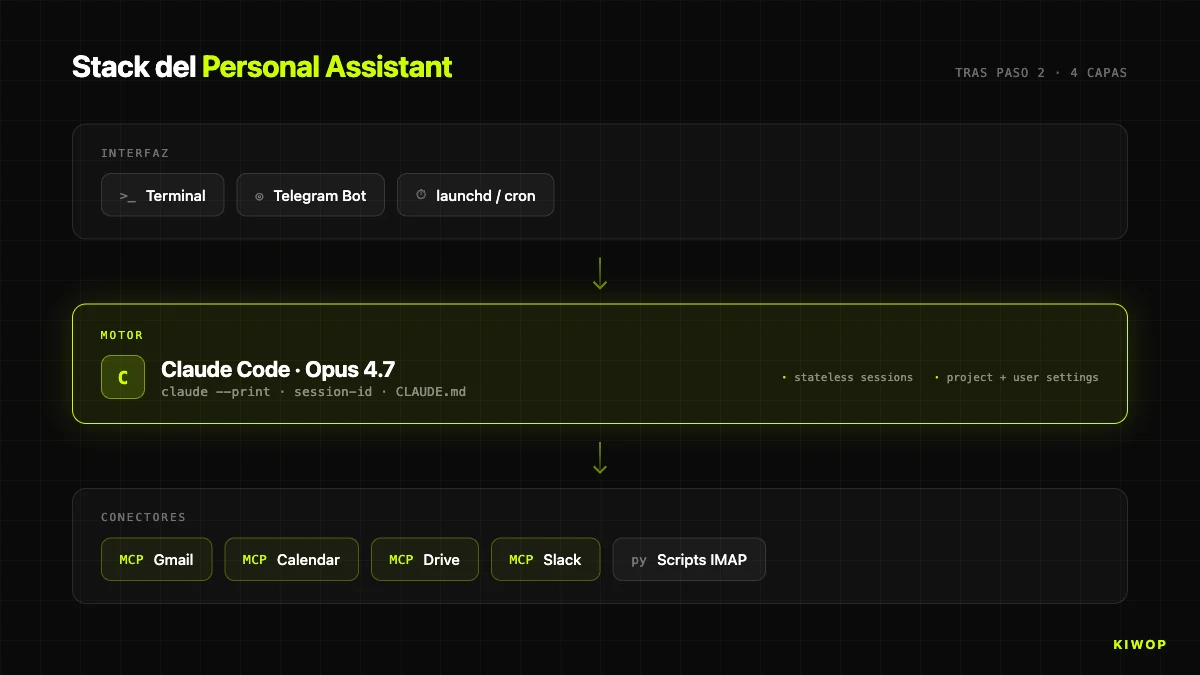
At this point you can already ask the PA "what do I have today on the calendar?" or "find the contract with client X in Drive" and it works. What's missing are the two channels MCP doesn't cover well: corporate IMAP email and Telegram.
Step 3: Python scripts for IMAP and Keychain
If all your email is on Gmail, this step is optional. If, like us, the main inbox runs on your own IMAP server (mail.kiwop.com in our case), it's time to write the bridge.
The architecture of the scripts is deliberately small. An internal module _mail.py with the common logic (IMAP connection, parsing, SMTP), and three minimal commands the PA can invoke:
mail_fetch.py: list recent or unread UIDs as JSON.mail_read.py: read the full body of a UID (without marking it as read — usesBODY.PEEK).mail_send.py: send an email or save it as a draft.
Golden rule about credentials. Never save the IMAP password in a file in the repo or in a persistent environment variable like ~/.zshrc. The risk isn't theoretical: every time you share a script, make a commit with a tracked .env, or install a VS Code extension that reads your environment, you're exposing secrets. On macOS we have Keychain, an OS-encrypted keyring accessible via the security command. The scripts read the credential on the fly when they need it and never write it to disk.
First, save the credentials to Keychain:
The usual ports: 993 for IMAP over SSL and 587 for SMTP with STARTTLS. If your provider uses implicit SMTPS, change to 465.
Now the shell helper that reads and writes to Keychain. We call it scripts/keychain.sh:
The Python equivalent uses subprocess to invoke security:
The environment variable fallback is deliberate: when you port this to Linux (systemd), security doesn't exist there and you'll use env vars exported from the unit file, read from a file with 600 permissions.
With Keychain connected, mail_fetch.py is clear. It's a CLI that prints JSON so Claude Code can parse it easily:
mail_send.py adds an important safeguard: without the --yes flag, it saves the message as .eml in drafts/ and doesn't send it. Only with an explicit --yes does it go out over SMTP. This enforces the CLAUDE.md confirmation rule at the code level, not just at the prompt level — even if the model skipped the rule, the script wouldn't send.
Critical detail about `BODY.PEEK`. When the PA "reads" an email to triage it, it must not mark it as read. If you mark it, you lose your pending tray as a visual signal in the email client. The IMAP flag that sets \Seen is BODY[]; the one that doesn't is BODY.PEEK[]. Always use it in mail_read.py.
Step 4: Telegram bot with persistent session
The Telegram bot is the most interesting piece of the PA because it inverts the flow: instead of you opening a terminal and typing to Claude, Claude receives your messages from your phone.
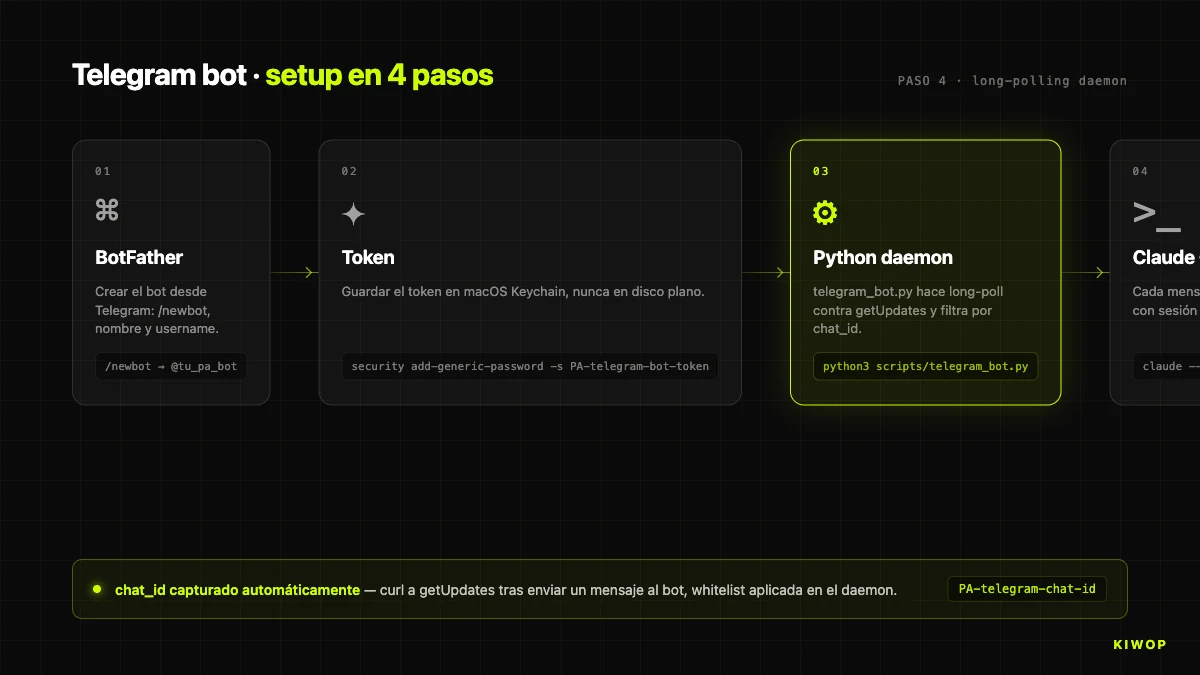
The plan: a Python daemon that does long polling against the Telegram API (no need for a public webhook), and forwards each message it receives to claude --print with a session run inside the PA repo. Claude executes the prompt with all its tools (MCP + Python scripts) and returns the answer. The daemon formats it for Telegram and sends it back to the chat.
Creating the bot takes two minutes. Open Telegram, talk to @BotFather, run /newbot, give it a name and a username. It returns a token like 123456:ABC-XYZ_.... Save it in Keychain and then detect your chat_id (the ID of the 1-on-1 conversation between you and the bot):
Now the daemon. The skeleton of telegram_bot.py is this:
Three non-obvious details in the design.
First, `chat_id` whitelist: the allowed_chat variable is your own chat and any message from another chat_id is silently dropped. If someone discovers your bot's username and sends it messages, it doesn't reply. It's the simplest but most effective barrier against abuse.
Second, `--permission-mode bypassPermissions`: the daemon runs without asking for confirmation to execute repo scripts because there's no human in front of it who can respond. Security doesn't come from Claude Code prompts, it comes from (a) the daemon only replying to the whitelisted chat_id, (b) the PA having the confirmation rule in CLAUDE.md, and (c) sensitive scripts like mail_send.py requiring --yes at the code level.
Third, ephemeral sessions per message. Each ask_claude generates a new session-id with uuid.uuid4(). That means the bot doesn't keep conversational memory between messages — each request starts fresh with your CLAUDE.md and your commands loaded. "Long" memory (your preferences, signature, priority contacts) lives in memory/ as files Claude reads when starting each session, not in the session itself. This avoids accumulating stale context and makes behavior very predictable.
Telegram-compatible Markdown. Telegram doesn't render GitHub-style Markdown (it doesn't understand tables, it doesn't understand links with brackets in many contexts, it misinterprets certain characters). Instead of fighting parse_mode: MarkdownV2 — which forces you to escape all special characters and breaks easily — we use a small readable plain-text converter (md_to_telegram.py) that removes Markdown syntax while preserving structure.
To test it before launchd:
Open Telegram, type /ping to your bot. It should reply pong. Then send "what time is it?" — it should answer with the current time querying the system via a Claude session. Congratulations: you now have a PA accessible from your phone.
Step 5: Scheduled briefings with launchd
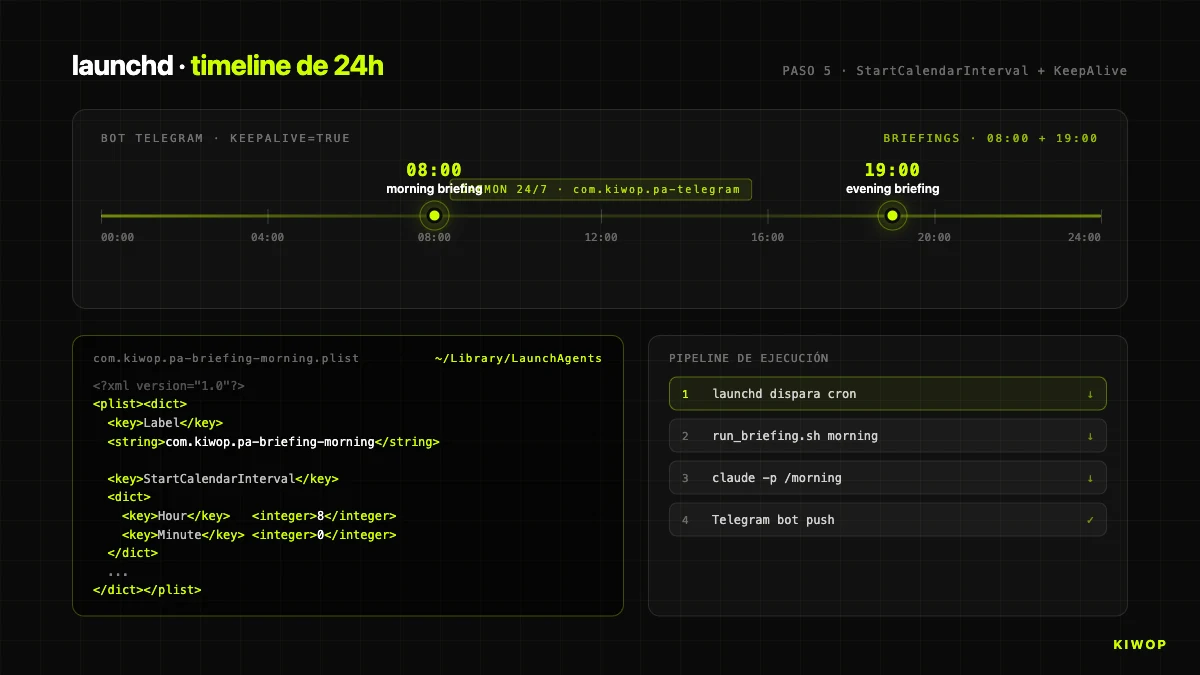
[`launchd`](https://developer.apple.com/library/archive/documentation/MacOSX/Conceptual/BPSystemStartup/Chapters/CreatingLaunchdJobs.html) is the process and scheduled task manager on macOS. It's the equivalent of cron + systemd combined into a single system. Each task is defined in an XML file (.plist) that tells macOS what to run, when, and what to do if it fails.
We're going to create three launchd jobs:
- Telegram bot as a permanent daemon (
KeepAlive: true). - Morning briefing every day at 08:00.
- Evening briefing every day at 19:00.
First the wrapper scripts/run_briefing.sh that launches Claude Code in non-interactive mode to generate the briefing:
Now the .plist for the morning briefing. Save it to scripts/launchd/com.kiwop.pa-briefing-morning.plist:
Important key: the explicit `PATH` in EnvironmentVariables. launchd does not inherit your shell PATH, so if you don't pass it in, claude won't be available and the briefing will fail silently. Include /opt/homebrew/bin (Apple Silicon), /usr/local/bin (Intel) and ~/.local/bin (if you installed Claude Code via pip --user).
Duplicate the file for the evening by swapping morning for evening and the hour to 19. And create the one for the Telegram bot:
The trio RunAtLoad: true + KeepAlive: true + ThrottleInterval: 15 means: start at login, restart if it crashes, and don't try to restart faster than every 15 seconds (to avoid failure loops).
To activate the three .plist files:
To verify they're active:
You should see the three entries with a PID (for the bot, which runs continuously) or with - (for the briefings, which only run at their scheduled times).
To trigger a briefing manually without waiting for 08:00 (useful for testing):
Step 6: Slash commands /morning, /evening, /inbox, /reply
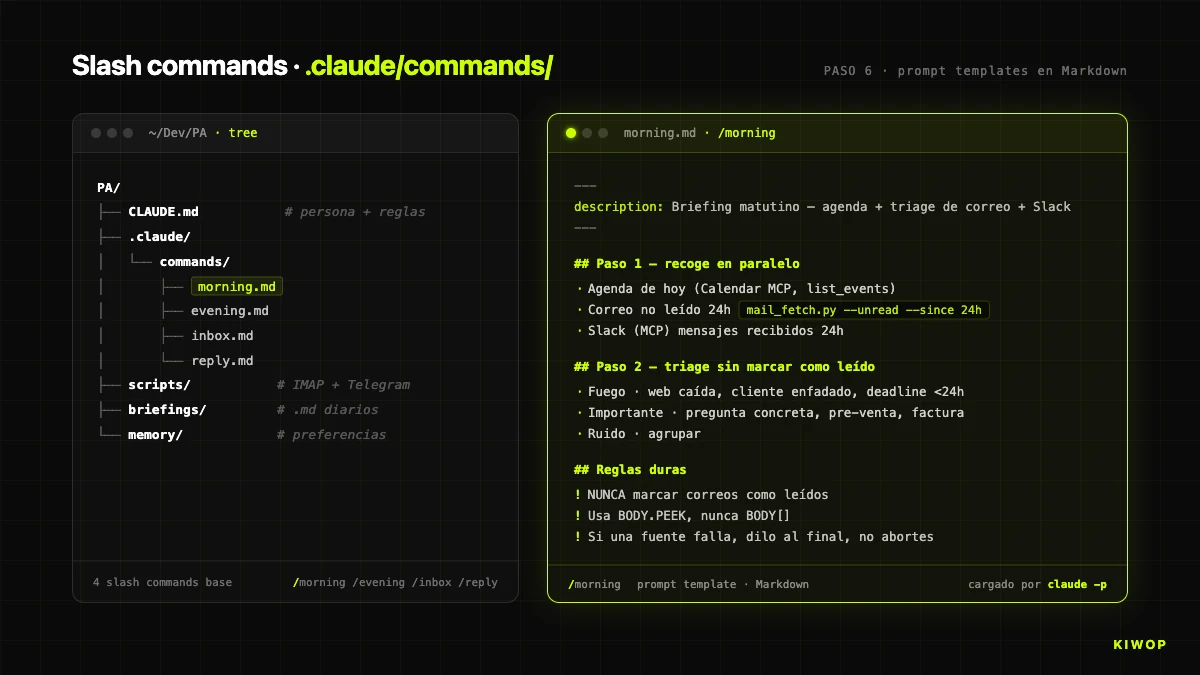
Claude Code slash commands live in .claude/commands/ as Markdown files. Each file is a prompt template that Claude runs when you invoke /name in the session. They're the cleanest way to encapsulate repetitive flows without repeating the same long prompt each time.
For the PA we define four minimal commands: /morning, /evening, /inbox, /reply. This is the example of .claude/commands/morning.md:
Good morning — <date>
Today's calendar
- HH:MM–HH:MM · Title · (location / attendees)
Email (N unread)
FIRE: [UID] Sender — Subject · context IMPORTANT: [UID] ... To review: [UID] ... Noise: N items
Slack
FIRE: ... IMPORTANT: ...
Suggested priorities
- ...
- ...
- ...
The /reply command is particularly important because it enforces the confirmation rule:
Notice the pattern: the command enforces the confirmation rule at the prompt level (step 5), and the script enforces the rule at the execution level (the mandatory --yes in mail_send.py). Double layer. If the model "forgets" step 5, the script doesn't send. If someone modifies the script to bypass --yes, the prompt still requires confirmation. It's the same defense-in-depth philosophy we recommend on LLM integration projects for any action with irreversible effects.
The four base commands are enough for 90% of daily use. You can add more: /schedule (create meetings), /book (schedule from an invite), /auth (diagnose the state of the MCPs).
Step 7: Test the setup end-to-end
With everything in place, it's time for a full round of tests before calling it functional. This is the checklist we use at Kiwop every time we replicate the setup on another machine:
1. MCPs authenticated. In a Claude Code session from ~/Dev/PA:
The four servers must appear with available tools. If any says "not authenticated", repeat the OAuth.
2. IMAP email working. From the terminal:
Should return a JSON with your three most recent unread emails. If it fails with imaplib.IMAP4.error, check Keychain and ports.
3. Manual briefing. From an interactive Claude Code session:
Generates a full briefing. Should not take longer than 60 seconds.
4. Bidirectional Telegram bot. From Telegram, to your bot:
/ping→pong(immediate)- "what do I have today on the calendar?" → answer with the real calendar (30–40 seconds)
5. launchd logs without errors.
The telegram_bot.err.log should have a line "Bot up. Allowed chat=...". If there's a FATAL: secret read failed, check that Keychain has the PA-telegram-bot-token and PA-telegram-chat-id items.
6. Cold test of the scheduled briefing.
It should have generated the day's briefing and pushed a copy to your Telegram. If Telegram doesn't receive it, check the PA-telegram-* credentials in Keychain.
Common problems and how to diagnose them:
Once it passes the six checklist points, the PA is ready for daily use. From here on, everything is refinement: add memory/ with your style preferences, add more slash commands based on the flows you detect as repetitive, tune the prompts of morning.md and evening.md to the exact output that you find most useful.
Practical advice on the first seven days. After setting it up, the PA is going to do suboptimal things until you discover what context about you it's missing. We recommend starting in "read-only" mode the first week: let it generate briefings, let it triage the inbox, but don't use /reply or confirm write actions yet. During that week you'll start spotting patterns to correct — "it misclassifies emails from this client because it doesn't know they're VIP", "it over-summarizes short Slack messages", "it marks as noise things that for me are important". All those corrections go to memory/triage_rules.md and to CLAUDE.md. From day seven or eight, when triage is consistent at 85–90%, you can open up write use with /reply and start gaining real time. Skipping this calibration phase is the most common mistake and the main cause of abandonment in our sample of people we've helped set it up.
Variants and scaling: Linux, Windows, and running 24/7
The tutorial is written on macOS because that's where we work, but the architecture is portable. The four main adjustments:
Process manager.
A systemd unit for the Telegram bot on Linux would be roughly this (~/.config/systemd/user/pa-telegram.service):
Activation: systemctl --user daemon-reload && systemctl --user enable --now pa-telegram.service.
Secrets store.
The fallback to environment variables in a file with 600 permissions works on all three platforms and is the common denominator if you want a single codebase for all systems.
launchd vs systemd, honest comparison:
Running it 24/7 on a remote server? It's viable and we've tested it. The pattern: a small Linux VPS with systemd running the Telegram bot and the scheduled briefings, plus an IMAP/SMTP connection to the mailbox, plus the Claude Code CLI authenticated with your Anthropic account. Pros: the PA replies even if your laptop is off. Cons: OAuth for MCP servers is more delicate without a local browser (you'll have to do the initial flow on your machine and copy the refresh token), and any update to the Claude Code CLI requires SSH and deploy. For most professionals who use the Mac daily, keeping it local is the option with the best simplicity/utility ratio.
The jump to a multi-user PA (one that serves a team) isn't a variant of the same tutorial — it's a SaaS and requires very different architectural decisions (multi-tenancy, authentication, session isolation). If you're interested in exploring that route, we address it in our AI agent development projects.
Two extensions we've seen work in practice once the base PA is stable. The first is a memory/ populated with Markdown files Claude loads in each session: a triage_rules.md with your exact criteria for classifying email, a writing_style.md with examples of emails written by you so drafts sound like your voice, a vip_contacts.md with the addresses that should never fall into "noise". The second is a background email watcher (a daemon similar to the Telegram bot, but instead of listening to Telegram it listens to your IMAP inbox) that fires a notification when an email classified as fire according to your rules arrives — useful for flows where the 08:00 briefing isn't enough. Both extensions are built with the same philosophy as the rest: short scripts, secrets in Keychain, ephemeral Claude Code sessions.
Frequently asked questions
How much does it actually cost to build this PA?
If you already have Claude Max x20 (about $200/month), the PA's marginal cost is zero. The MCP servers are free, the Telegram bot runs on your Mac without hosting, and the Python scripts don't require paid dependencies. If you don't have Claude Max, the math changes: the $200/month is the fixed investment. The build time following this tutorial is 60–90 minutes.
Is it safe to give email and calendar access to a PA built this way?
Yes, with the following explicit conditions. First, the official MCP servers authenticate via OAuth without saving your password to disk — the token lives in the MCP server's own encrypted store. Second, IMAP/SMTP credentials are in macOS Keychain (the OS keyring, encrypted), never in plain files. Third, the Telegram bot only responds to the whitelisted chat_id and the mandatory confirmation rule in CLAUDE.md prevents write actions without an explicit "yes". The attack surface is very bounded, comparable to any desktop email client.
What about data privacy? Does Anthropic train with my emails?
Anthropic publicly declares (policy as of 2026) that data sent via API and via Claude Code is not used to train models. For regulated content (healthcare, legal with professional secrecy, confidential financial), it's worth reviewing the specific terms in force and considering whether a PA on your own infrastructure is more appropriate — in which case an enterprise RAG solution may be the right alternative.
Can WhatsApp be integrated into this PA?
As of April 2026, there's no official MCP for WhatsApp. There are unofficial bridges (Matrix, Beeper, Meta's own WhatsApp Business Cloud API) that can be connected as an additional channel, but all have caveats: unofficial bridges may violate Meta's ToS and be unstable, and the Business Cloud API requires a verified commercial account. Our pragmatic recommendation is to use Telegram as the primary mobile channel.
Can this PA serve multiple users?
No, by design. A PA is single-user: its credentials, memory, preferences, and CLAUDE.md point to a single person. For multi-user scenarios (a team sharing a common assistant) the correct architecture is a multi-tenant SaaS with per-user data isolation — not a copy of the PA with shared variables. It's a totally different conversation.
Does it work without internet?
No. Claude Code requires a connection to query the model, the MCP servers use online APIs (Google, Slack, Telegram), and IMAP/SMTP obviously too. The PA described here is a client that orchestrates cloud services — not a local model. If you need offline operation, it's a full redesign with a local LLM (Llama, Mistral) running on ollama or similar, with notable quality and performance constraints.
How long does the PA take to produce its first morning briefing?
The full run_briefing.sh takes between 40 and 90 seconds depending on how much email you have to triage. The slowest part is the IMAP fetch with --with-body (one connection per UID), followed by the model's reasoning on triage. If your inbox is very large (>50 unread), it can go up to 2–3 minutes. If it's the first run and the Calendar MCP is still warming up, add 5–10 extra seconds.
Can I customize it for my specific flow?
Yes, and it's the project's philosophy. The key files to tweak: CLAUDE.md (persona, tone, rules), .claude/commands/*.md (specific flows), memory/ (persistent preferences, signature, VIP contacts, triage rules). The Python code rarely needs to be touched except to add additional IMAP accounts or integrate a new channel. Start with the base setup working before customizing — it's cheaper to learn where to customize once you see what's extra and what's missing.
Conclusion: 60 minutes between you and your first operational PA
We've been using this PA at Kiwop for two weeks, and the most honest conclusion we can write is that the real productivity leap doesn't come from the model — it comes from the minimalist design around the model. Claude Code, Opus 4.7, the MCP servers: those are the expensive parts you don't build. The ~500 lines of Python, the handful of Markdown files, the three launchd .plist files — that's what you do, and that's what turns the model's capabilities into an assistant useful for your day.
This tutorial has covered the full path from an empty directory to an operational PA with four channels and scheduled briefings. The reference code we used is published at https://github.com/purroy/majordomo under a permissive license — clone, fork, adapt. It's not the only way to build a PA in 2026, but it's one we know works because we use it every morning at 08:00 before turning on the work Mac.
If while following the tutorial you've found a gap where your specific case needs more than this base stack — custom integrations with your CRM, a Teams channel, a proprietary MCP for your ERP, or directly a multi-user assistant for your whole team — at Kiwop we build those pieces as part of our AI agent development and AI consulting services. Our starting point is always the same: thin, decoupled, provider-agnostic layers. There's nothing in this tutorial you can't replicate yourself in an afternoon, but if your time is more expensive than the cost of outsourcing, contact our team and we'll do it with you.
The PA now running on your Mac is yours. No one can cut it off overnight. And that, in 2026, is the most valuable property an applied AI agent can have at daily work.