By the Kiwop team · Digital Agency specialized in Software Development and Applied Artificial Intelligence · Published May 7, 2026 · Last updated: May 7, 2026
TL;DR — The European Accessibility Act deadline was June 28, 2025. Most websites still don't comply. This post gives you the practical framework: 5 open-source tools that cover ~70% of automatable failures, a complete audit in 2 hours, and an EAA checklist prioritized by legal impact. No consultants, no special budget. Just a proven stack and copy-pasteable commands.
When the European Accessibility Act came into force on June 28, 2025, the most common reaction in technical teams was: "we'll look at it next week." Ten months later, most of those websites are still the same. The WebAIM Million 2024 report confirmed it even before the deadline: 94.8% of the home pages analyzed had automatically detectable WCAG failures.
The problem isn't lack of will. It's the lack of a clear entry point. You know you need to comply with WCAG 2.2 AA, you know tools exist, but you're not sure where to start, how much time it takes, or how to prioritize what you find.
This article is that entry point. If you've already read our guide on the EAA regulations, deadlines and sanctions, this is the next step: the concrete technical procedure. If you haven't read it, do that first — here we assume you understand what the law requires and we focus on how to execute it.
Why Audit NOW (and Not Next Week)
The Real State of EAA Compliance in 2026
The deadline has passed. This isn't a future threat: the EAA is already applicable law in all EU member states that transposed the directive before June 28, 2025. And the compliance figures are alarming.
The WebAIM Million 2024 analyzed the top 1,000,000 most-visited home pages. Result: 94.8% had at least one automatically detectable WCAG 2.1 AA failure — and that's before counting failures that only surface in manual review. The most common errors: low color contrast (81% of pages), missing alternative text (54.5%), missing form labels (48.6%), empty links (44.6%) and buttons without accessible names (28.2%).
Put another way: almost certainly your website has all those problems. The question isn't whether you comply, but how many criteria you fail and how severely.
The Concrete Legal Risk
The European Commission's official EAA portal is clear: the regulation applies to any company that offers digital products or services to consumers in the EU, regardless of where it's headquartered. Sanctions are set by each member state, but the directive requires them to be "effective, proportionate and dissuasive." Several countries already contemplate fines of up to €100,000 per infringement.
Beyond fines: any person with a disability who cannot access your service can file a formal complaint with the supervisory body in their country. The burden of proof falls on the company — you must prove you comply, not them that you don't.
What the Regulator Requires (and What It Doesn't)
What it requires is conformance with WCAG 2.2 level AA and a public accessibility statement. What it doesn't require is total perfection or an annual audit signed by a certified firm. It requires a reasonable level of due diligence, documented.
What won't save you: a JavaScript overlay that superimposes itself on your website promising automatic accessibility. The FTC fined accessiBe $1 million for false advertising on exactly that point. No regulatory body accepts an overlay as evidence of compliance.
The first real step of that due diligence is the audit. And you can do it in 2 hours with the right tools.
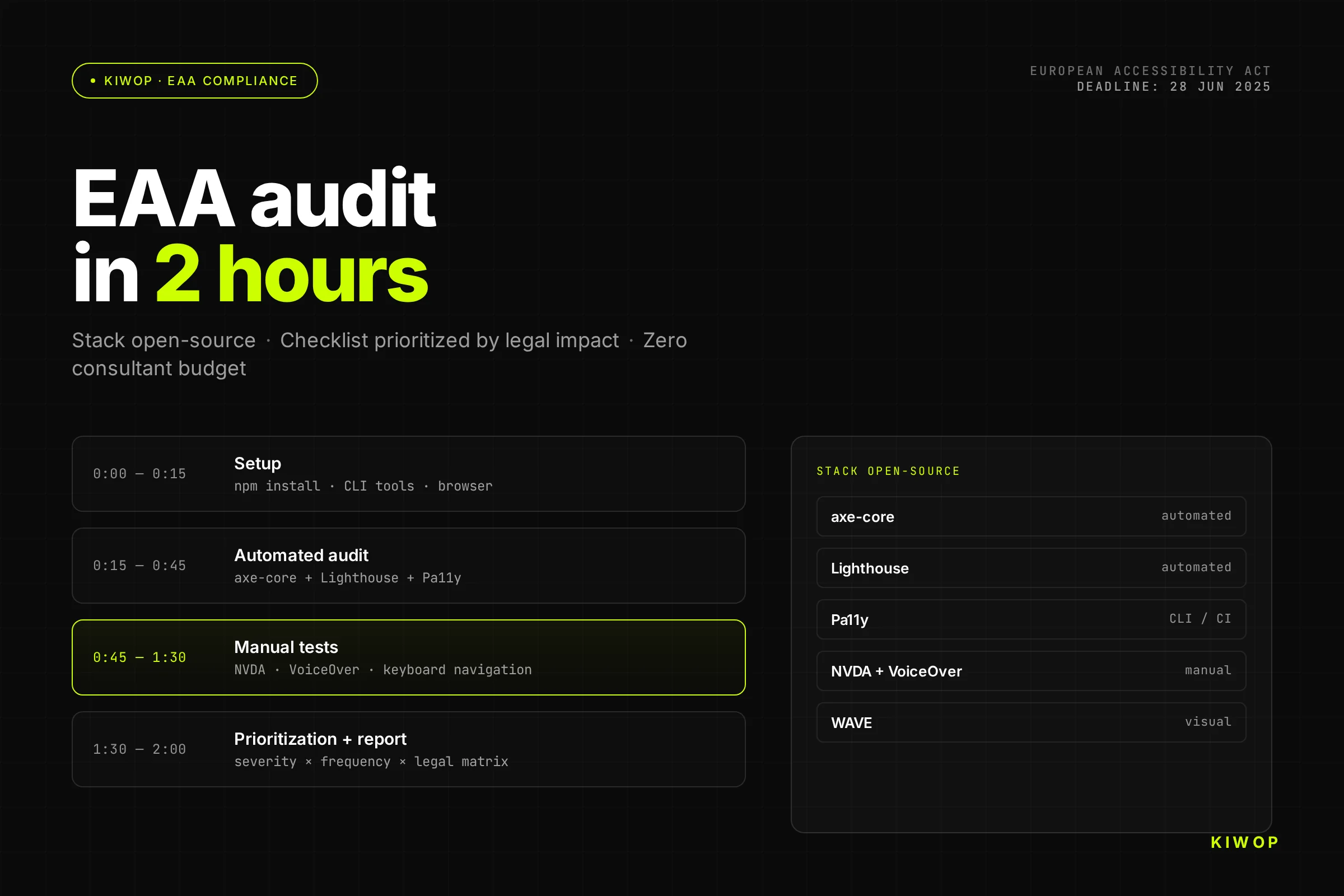
The Stack: 5 Open-Source Tools That Cover ~70% of WCAG 2.2 AA
Before looking at the process, understand the fundamental limit of any automated tool: they detect approximately 30–40% of real accessibility problems. The W3C accessibility auditing guide says so. The rest requires manual review — keyboard navigation, screen readers, human judgment.
Why start with automated tools then? Because they let you systematically eliminate the thickest layer of errors in minutes, freeing up time for manual review where the real value lies.
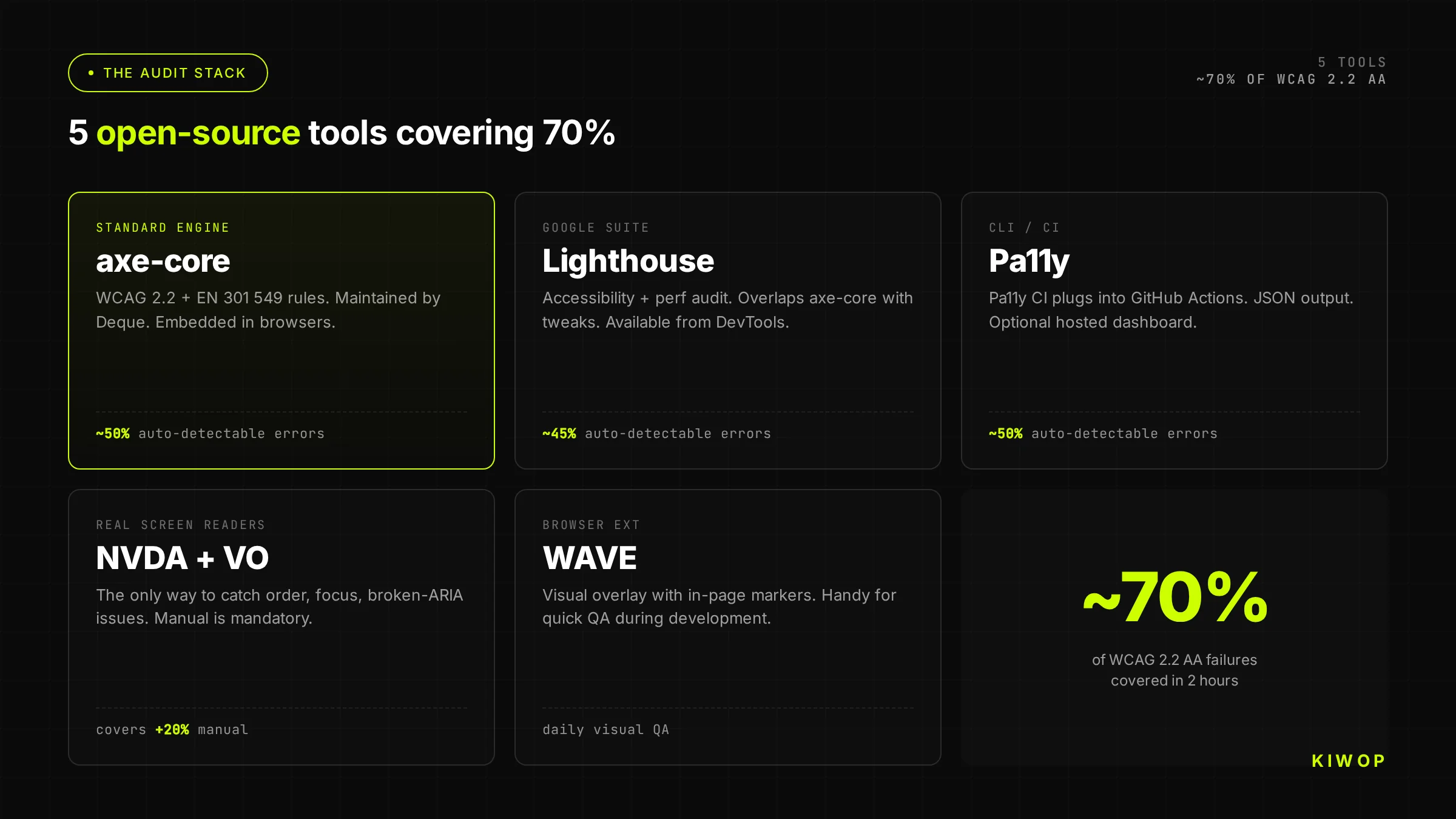
axe-core (Deque) — The Industry-Standard Engine
axe-core is the open-source library from Deque Systems that today powers virtually all accessibility testing tools in the industry. Chrome DevTools, Storybook, Playwright, Cypress and dozens of CI frameworks use it. It's not one option among many: it's the engine.
Its main advantage isn't coverage — it's the practically zero false-positive rate. When axe reports an error, it's a real error. When it reports nothing, it doesn't mean you're clean; it means the errors it doesn't detect are in that 60–70% that needs manual review.
You can use axe in three ways:
As a browser extension (axe DevTools Free): install the extension in Chrome or Firefox, open your page, run the analysis. Results in seconds. Zero configuration. Ideal for first contact.
As a library in tests: integrate axe-core directly into your test suite with Playwright or Cypress:
Via CLI with @axe-core/cli:
Lighthouse — Chrome's Free Complement
Lighthouse includes an accessibility audit in its standard report, also based on axe-core, but with additional coverage of performance metrics and some proprietary checks.
Its accessibility score (0–100) doesn't equate to a percentage of WCAG compliance. It's a relative measure that serves as a reference. The really useful part is the categorized issue list it generates.
You can run it from:
- Chrome DevTools → Lighthouse → "Accessibility" category
- CLI:
npx lighthouse https://your-website.com --only-categories=accessibility --output json - PageSpeed Insights:
https://pagespeed.web.dev/(free, nothing to install)
The official Google Lighthouse accessibility documentation documents exactly what each criterion checks and how it calculates the score. Read it once to avoid misinterpreting results.
Pa11y — CLI/CI Audit
Pa11y is the command-line tool designed to integrate into CI/CD pipelines. It can audit a single URL, a full sitemap or a list of pages, and export results in multiple formats.
Pa11y uses htmlcs by default, but can be configured to use axe-core as its engine:
Pa11y's advantage over running axe manually is that it handles pages with asynchronous JavaScript, basic authentication and multi-page sites without you needing to write your own scripts.
NVDA + VoiceOver — Real Screen Readers
No automated tool can replace spending 20 minutes navigating your website with a screen reader. The results are always revealing — and always different from what you expected.
NVDA (Windows, free): the most widely used screen reader in Windows environments. Download it from nvaccess.org. The fundamental shortcuts for a quick audit:
VoiceOver (macOS/iOS, built into the system): activate it with Cmd + F5. For a quick audit on macOS:
What you're looking for with both readers: does it correctly announce the type of each element (button, link, field)? Do forms have labels? Do images have useful alt text? Does the reading order make sense?
WAVE (Browser Extension) — Quick Visual Checks
The WAVE extension from WebAIM overlays visual icons directly on the page indicating errors, warnings and structural elements. It's the fastest way to get a visual overview of problems without leaving the browser.
Especially useful for:
- Seeing the heading hierarchy at a glance (are you jumping from H1 to H4?)
- Detecting low-contrast areas in visual context
- Identifying forms without labels before running axe
- Verifying that ARIA landmarks are well-defined (header, nav, main, footer)
Don't use it as your primary tool — it has more false positives than axe. Use it as a first visual scan before running the others.
Step by Step: Your First Audit in 2 Hours
This protocol covers the most critical pages of your site: home, a listing page, a detail page, and the main conversion flow (contact, registration or purchase). With the 2 hours distributed like this:
Minutes 0–15: Setup → Minutes 15–45: automation → Minutes 45–90: manual review → Minutes 90–120: prioritization and report
Minutes 0–15: Setup
Before launching tools, define exactly which pages you'll audit. An audit that tries to cover the entire site at once ends up not covering anything well.
Minimum recommended list for a first audit:
- Home (
/) - A representative listing or category page
- A representative detail or service page
- Contact page or main form
- A checkout or registration page (if applicable)
With that list, install the tools:
Also install the WAVE extension in Chrome or Firefox, and download NVDA if you're on Windows (or activate VoiceOver on macOS with Cmd + F5).
Minutes 15–45: Automated Execution (axe + Lighthouse + Pa11y)
Run all three tools on each URL in your list. Order matters: start with axe because its output is the cleanest, then Lighthouse for the combined performance + accessibility view, and Pa11y to validate with a second engine.
While the scripts run, open each URL in Chrome with the WAVE extension active. Note visually the patterns you see before reading the reports.
When the scripts finish, open the JSON with any viewer or simply count the violations:
Minutes 45–90: Manual Tests with Screen Readers
This is the part that adds the most value and that people most often skip. Don't skip it.
20-minute protocol with NVDA or VoiceOver (repeat for each critical page):
- Navigate with Tab only from the beginning of the page. Is the first element "skip to main content" (skip link)? Is focus visible at all times? Does the order make logical sense?
- Open the headings list (
Insert + F7in NVDA, rotor in VoiceOver). Is there an H1? Is the hierarchy consistent? Are there headings on elements that visually aren't headings?
- Activate forms mode if there are forms. Fill out the form using only the keyboard. Does each field announce its label? Are validation errors announced correctly? Can you submit the form?
- Navigate by links (key
Kin NVDA). Do all links have descriptive text out of context? Does any say "click here," "see more" or "read"?
- Listen to images. When focus reaches an image, does the alternative text describe its content or function? Are decorative images ignored (alt="")?
Document each problem you find with: URL, affected element, WCAG criterion violated, and priority (covered in the next step).
Minutes 90–120: Prioritization and Report
You have two sources of issues: the automated reports and your manual notes. The work now is to unify and prioritize them by legal and user impact.
Don't try to fix anything yet. The goal of the 2 hours is diagnosis, not remediation.
For the report, create a document with this minimum structure:
How to Interpret Results: Prioritization by Legal Impact
The biggest mistake when interpreting an accessibility audit is treating all issues equally. Low contrast in footer text has very different consequences from a registration form that isn't keyboard-operable.
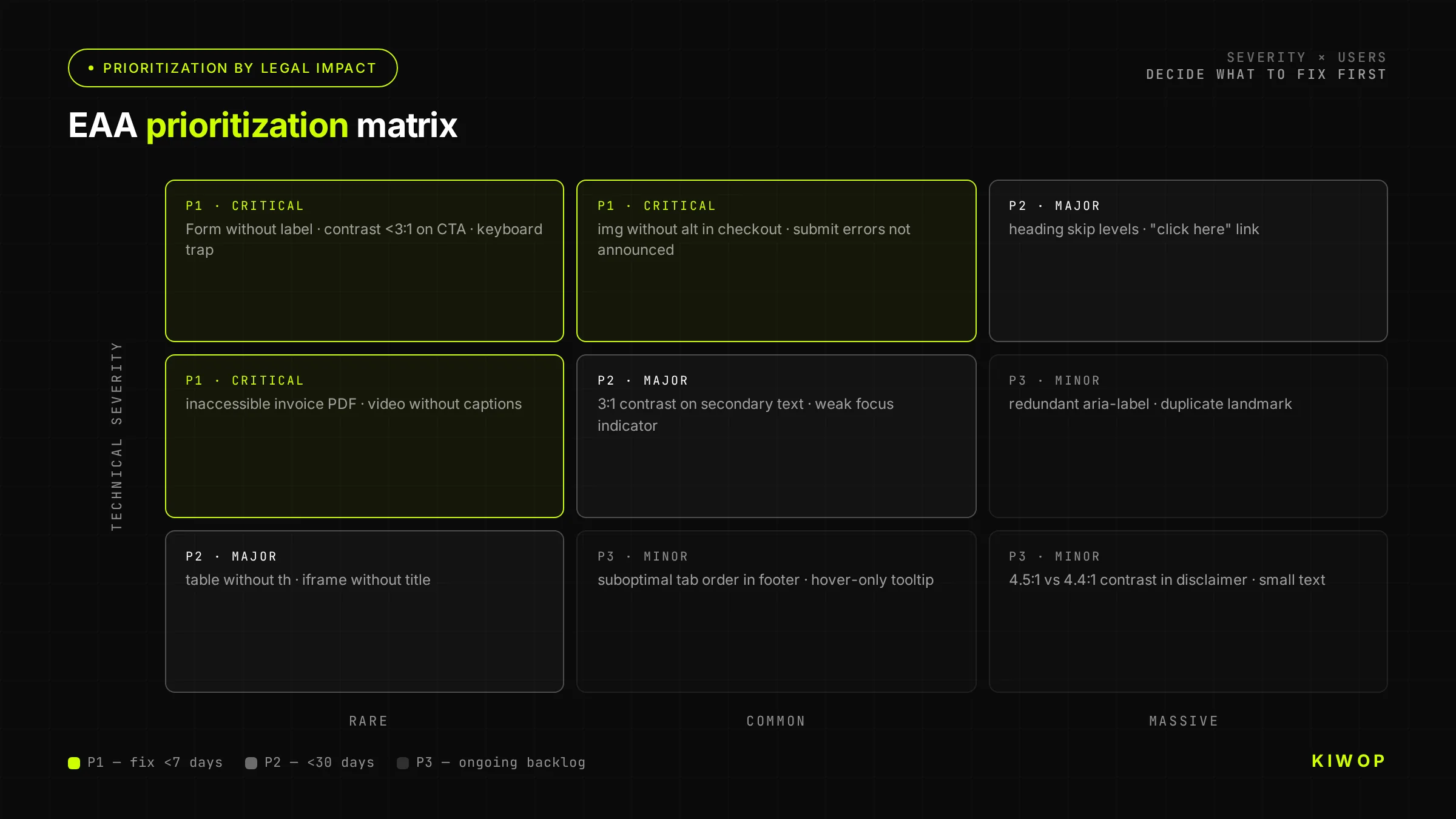
The prioritization matrix combines two axes: severity for the user (does it block use?) and legal exposure (does it affect critical flows the regulator would examine first?).
Critical Issues (Block Compliance)
An issue is critical when it prevents completing a task for a user with a disability or when it affects a flow the regulator would examine first (registration, purchase, contact, service access).
Usual candidates:
- Keyboard-inaccessible forms: WCAG criterion 2.1.1 (Keyboard) is level A — the minimum level. Not complying with it on the contact form is a direct compliance blocker.
- Functional images without alt: an image that is a link or button without alternative text leaves the screen reader user without information to act. Criterion 1.1.1.
- Buttons without accessible name:
<button><svg>...</svg></button>without aria-label. The button exists, the user knows it's there, but doesn't know what it does. Criterion 4.1.2. - Video with audio and no subtitles: if you have videos with information in audio, criterion 1.2.2 requires synchronized subtitles. The absence is blocking and highly visible.
Major Issues (High Risk of Complaint)
An issue is major when it significantly hinders use but doesn't completely block it, or when it affects high-visibility pages even if the individual impact is partial.
- Low contrast in body text: criterion 1.4.3. A ratio below 4.5:1 in body text affects users with low vision and users in difficult lighting conditions (who aren't only people with declared disabilities).
- Broken heading hierarchy: jumping from H1 to H4, using headings only for visual style, or having no H1. Affects screen readers and cognitive users who navigate by structure. Criterion 1.3.1.
- Missing focus visible: if the focus
outlineis globally removed with*:focus { outline: none; }, keyboard navigation becomes opaque. Criterion 2.4.7 (AA) and 2.4.11 (AA in WCAG 2.2). - Error messages without ARIA live regions: when a form validates and shows errors, does the screen reader announce them automatically? If not, the user doesn't know something went wrong. Criterion 3.3.1.
Minor Issues (Improvements)
An issue is minor when it has limited impact, affects secondary elements, or requires contextual judgment to determine if it's really a problem.
- Descriptive but imprecise alt on decorative or supporting images.
- Contrast slightly below the minimum in footer text or disclaimers.
- Redundant ARIA roles that cause no harm but add no value.
- Contextual link text (that makes sense with the surrounding text, though not standalone).
Don't ignore minors indefinitely — they accumulate. But don't block remediation of criticals to fix minors first.
What Tools DON'T Detect (and You Must Do Manually)
Here's the 60–70% that axe, Pa11y and Lighthouse don't see. This block is what differentiates a real audit from an automated check and a click on "share." The W3C documentation on accessibility evaluation covers it rigorously; here's the practical version.
"Decorative" alternative text misused: axe verifies that images have alt, but can't know if the alternative text correctly describes the content. "Image 1" or the filename pass the automated check and are a real failure.
Logical tab order: Tab cycles through interactive elements in DOM order. If your CSS visually reorders elements, the tab order can be chaotic. No tool detects this — only by navigating with Tab.
Form labels correctly associated: axe detects missing labels, but doesn't detect labels that are in the HTML but not associated with the correct field (whether through incorrect for/id or poorly implemented proximity association).
Contextual link text: WCAG allows links whose text ("see more") makes sense in context thanks to the surrounding text (criterion 2.4.4 — In Context). Axe can't evaluate whether that context is sufficient. Only a human can judge it.
Reading flow in screen reader: the reading order of a screen reader follows the DOM, not the visual presentation. Layouts with CSS Grid or Flexbox that visually reorder elements can generate an incomprehensible reading flow that no automated tool detects.
Video subtitles and transcripts: axe detects whether a <track> element exists in a <video>, but cannot verify whether the subtitles are accurate, complete or well-synchronized. That requires human review.
Complex gestures without alternatives: if your interface has functions activated by multi-finger gestures (pinch, swipe) without keyboard or single-tap alternatives, it's a violation of criterion 2.5.1. Desktop tools don't detect it.
Misused ARIA: axe detects invalid ARIA, but doesn't detect technically valid ARIA that breaks semantics. A role="presentation" on an interactive element, or aria-hidden="true" on relevant content, pass the automated check and are serious failures.
Reporting in EAA Compliance Format
An audit that doesn't generate useful documentation is a half-done audit. The regulator doesn't ask for an axe test; it asks for evidence of due diligence. The GOV.UK accessibility guidance — the sector reference even though it's UK-scoped — documents the de facto standard for accessibility statements that several European regulators have adopted as a reference.
Structure of the Report the Administration Expects
An accessibility audit report that you can present to the regulator (or that serves as the basis for your statement) must include:
- Scope: which pages were audited, why those were chosen, and what assistive technologies were used for manual review.
- Methodology: automated tools (exact versions), manual review process (screen readers, browser versions).
- Standard evaluated: WCAG 2.2 level AA / EN 301 549.
- Findings: list of non-compliant criteria, with evidence (screenshots, HTML snippets), classified by severity.
- Compliance status: full conformance, partial or non-conformant — with justification.
- Documented exceptions: if there is uncontrollable third-party content (external widget, embedded map), document it as a temporary exception with a resolution plan.
- Audit date and review frequency.
Accessibility Statement Template
The accessibility statement is the public document the EAA requires you to publish on your website (usually at a URL like /accessibility or in the footer). Minimum structure:
How to Document Temporary Exceptions
If you have content that doesn't comply but can't be remediated immediately (third-party chat widget, embedded map, legacy PDF), the EAA allows you to document it as a temporary exception with conditions:
- Describe the affected content and the WCAG criterion violated.
- Justify why it's a disproportionate burden to resolve it immediately.
- Indicate the expected resolution date or the accessible alternative available.
- Update the statement when it's resolved.
A documented exception is legal protection. An undocumented exception is not.
Maintaining Compliance: CI Integration
A one-time audit tells you where you are today. CI integration tells you whether what you publish tomorrow breaks what you fixed yesterday. Without accessibility CI, remediation is a leaky bucket.
axe-core in GitHub Actions / GitLab CI
The most basic CI block with axe and Playwright:
And the corresponding test:
If your project uses React or any other SPA framework, make sure the test waits for dynamic content to have rendered before running axe — use page.waitForSelector or page.waitForLoadState('networkidle').
Pa11y Dashboard
Pa11y has an open-source web dashboard that lets you monitor a full site's accessibility over time and see how issues evolve per page. Especially useful for:
- Sites with many dynamically generated pages (blogs, e-commerce).
- Teams where results are consulted by non-technical people.
- Scheduled weekly or monthly audits without manual intervention.
For smaller projects, Pa11y CI with JSON output and a versioned configuration file in the repo is usually sufficient:
The threshold parameter lets you set a maximum acceptable number of violations before failing the build — useful when you're in the middle of remediation and want to prevent regressions without blocking every PR.
Pull Request Gating
The most effective way to maintain compliance is by blocking merges from PRs that introduce new violations. The recommended flow:
- The CI workflow runs axe on the pages affected by the PR.
- If there are new violations (compared to the base branch), the check fails.
- The PR cannot be merged until the new violations are resolved or the exception is documented.
The key is auditing only affected pages — auditing the entire site on every PR is too slow. A practical strategy: map which components each PR affects and audit the pages that use those components.
This model of QA automation integrated into the development cycle is the same one we apply to other types of quality: performance, security, test coverage.
Metrics to Monitor
The metrics that really matter for tracking accessibility over time:
Common Remediation Mistakes
The audit is half the work. Remediation is where most teams make mistakes that create new problems or give a false sense of compliance.
Mistake 1: Only fixing what axe detects
If you remediate only automatic issues, you're covering 30–40% of the problem and leaving 60–70% untouched. The regulator doesn't accept "we passed axe with no errors" as evidence of WCAG compliance. Pass the automated check AND the manual review.
Mistake 2: Automatic AI alt text without review
Several accessibility tools and CMSs offer automatic alt text generation with AI. The result may be technically present (which satisfies axe) but semantically useless or incorrect. An AI-generated alt that describes "a person using a laptop in an office" when the image shows a technical architecture diagram passes the automated check and fails the real criterion. Always review generated alts.
Mistake 3: Unnecessary ARIA roles that break the tree
The most common antipattern when trying to "improve" accessibility: adding ARIA roles to elements that already have correct native semantics. <button role="button"> is redundant. <nav role="navigation"> is redundant. But <div role="button"> instead of <button> breaks the accessibility tree because the div doesn't have the keyboard behavior of the native button. The general rule: use native semantic HTML before adding ARIA. ARIA is for cases HTML doesn't cover, not to decorate existing HTML.
Mistake 4: Changing markup without retesting with NVDA
Every HTML change that affects structure, roles, landmarks or element order can change the screen reader experience in non-obvious ways. A change that improves axe's score can worsen real navigation. Retest with NVDA or VoiceOver every time you modify the semantic structure of a page, not just when you make specific accessibility changes.
Mistake 5: Fixing without understanding the criterion
"Add aria-label to buttons" is an instruction that can be interpreted literally and applied excessively. If a button already has visible descriptive text, adding an aria-label can contradict it and confuse the screen reader (criterion 2.5.3 — Label in Name — requires the aria-label to contain the visible text). Before applying a fix, read the WCAG criterion that justifies the change in the official W3C spec.
Frequently Asked Questions
Is WCAG AA Enough or Do I Need AAA?
The EAA requires WCAG 2.2 level AA. Level AAA is not legally mandatory. That said, some AAA criteria are very simple to implement and offer significant improvements for certain user groups (such as criterion 2.4.12 — Focus Appearance — which requires greater focus visibility). If you reach AA without extra effort, check whether any specific AAA criterion is relevant for your audience. But don't make AAA a regulatory compliance target — it isn't one.
What Happens If I Have a Third-Party Widget That Doesn't Comply?
This is one of the most common and most uncomfortable scenarios. If the widget is in a critical flow (support chat, payment gateway, registration form), you have three options: replace it with an accessible one, provide an equivalent accessible alternative, or document it as a temporary exception with a resolution date. What you can't do is ignore it — the law makes you responsible for the complete experience you offer the user, including components you don't directly control. If the widget provider has no accessibility roadmap, that's a vendor selection criterion.
How Much Does a Professional Audit Cost?
An independent professional audit — the kind that generates a formal report with legal value to present to the regulator — generally ranges between €3,000 and €15,000 for a medium-sized site, depending on the number of pages, the complexity of interactions and whether it includes testing with real users with disabilities.
The 2-hour audit described in this post is not equivalent to a professional audit. It's a high-level diagnostic that lets you know where you stand and prioritize. It serves as the basis for internal remediation. If you need the formal report to present to the regulator or for a legal process, you need a professional audit. At Kiwop we conduct formal accessibility audits — if you're at that point, let's talk.
Does the Audit Need to Be Repeated?
Yes, at two levels. The automated level (axe in CI) must run with every PR that modifies UI components. The full level (automation + manual review with screen readers + flow review) must be repeated at least once a year and whenever there are significant design changes, major new features, or a change in rendering technology.
Accessibility is not a state you achieve and then maintain on its own. It's a continuous process — exactly like performance or security.
Do My PDF or Documents Also Need to Comply?
Yes. The EAA doesn't only apply to HTML. Downloadable documents (PDF, Word, Excel) that are part of a digital service must also be accessible if they contain information relevant to the user. Accessible PDFs require heading structure, correct reading order, alt text on images, and real text (not a scanned image). Tools: PAC 2024 (PDF Accessibility Checker, free) and the accessibility checker built into Adobe Acrobat. If your site offers documentation, contracts, invoices or forms in PDF, include them in the audit.
Conclusion: Compliance Is a Process, Not an Event
If there's one lesson that summarizes everything above, it's this: accessibility is maintained the same way software is — with automated tests that detect regressions, periodic reviews that validate what automation misses, and documentation that demonstrates due diligence.
The EAA deadline has passed. You can't undo that. What you can do is start today, with the stack you have, in 2 hours, and build from there. An imperfect audit done today is infinitely more valuable than a perfect audit that's never executed.
The path is: diagnosis (this post) → prioritized remediation → CI integration → formal audit if your legal exposure requires it.
If at any point along the way you need external support — a formal audit, complex remediation, or integrating accessibility into your team's Software Development process from the start — at Kiwop we do exactly that. Tell us where you stand and we'll tell you where to begin.